MagicChat in ChatGPT
Ask ChatGPT what your customers asked this week, see which questions your support bot can't answer, and fix them in one reply.
 Used MagicChat
 What you can ask
- “What did customers ask my support bot this week, and which ones can't it answer yet?”
- “Write a refund policy FAQ with me and add it to my MagicChat bot”
- “Train my MagicChat bot on https://yourwebsite.com/faq”
- “How many conversations and leads did my bot get this month?”
ChatGPT can list your bots, train them on a page or on text it writes with you, check what they know, read what visitors asked, and show stats and leads. Nothing can be deleted through the connection.
Connect MagicChat to ChatGPT
- 1
Have a MagicChat account
- 2
Open ChatGPT's New App box
This opens ChatGPT in a new tab with the right box already open:
Open ChatGPT → New App - 3
Fill in 2 boxes
Copy each one into the matching box (green 1 and 2):
1 · NameMagicChat2 · Server URLhttps://www.magicchat.ai/api/mcp/mcp3 · Authentication already says OAuth. Leave it. The description is optional.
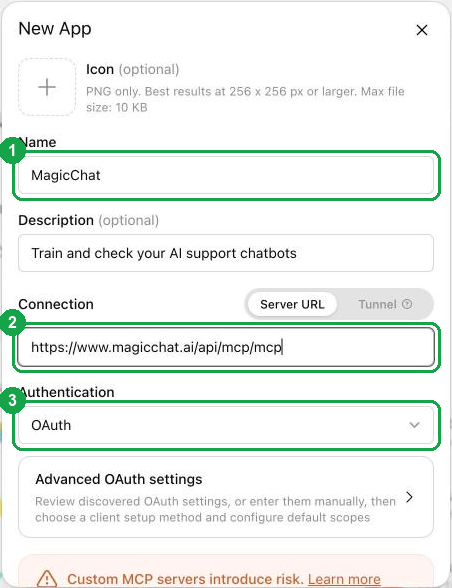
Optional: add the MagicChat icon
Download the icon, then click the + next to “Icon” and pick the file.
- 4
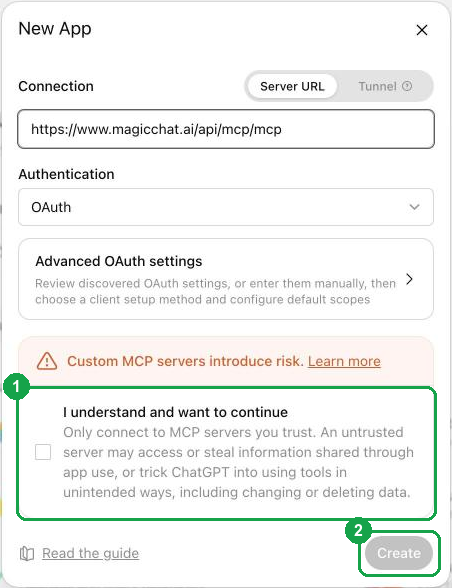
Tick the box, press Create
Scroll down in the box. Tick I understand and want to continue (1), then press Create (2). ChatGPT shows this warning for every app that isn't in its directory yet.
- 5
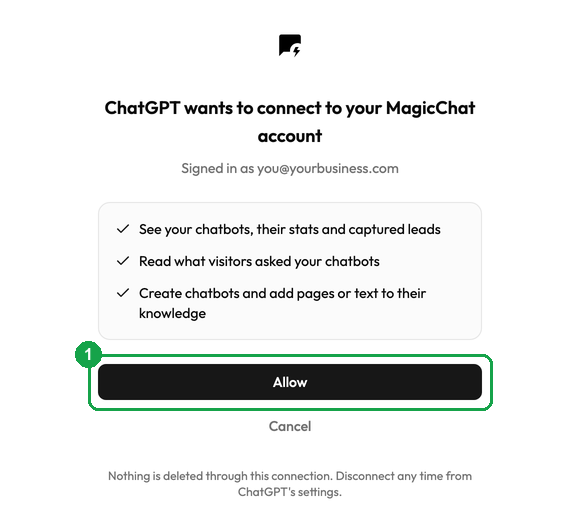
Press Allow
A MagicChat page opens. Sign in if it asks, then press Allow (1). You're back in ChatGPT, connected.
If something doesn't work
- The button didn't open the New App box: in ChatGPT open Settings → Security and login, switch on Developer mode, then go to Plugins, press + and create a custom MCP app.
- ChatGPT doesn't use MagicChat: start your message with “Use MagicChat to…”.
- “No bots yet”: ask ChatGPT to create one, or make it on the MagicChat dashboard.
- Disconnect: ChatGPT Settings → Plugins → MagicChat. Questions? Support.